
Your business
Create an owner account and start a business
This signup creates your own business; staff at an existing business join by invitation.
Step by step
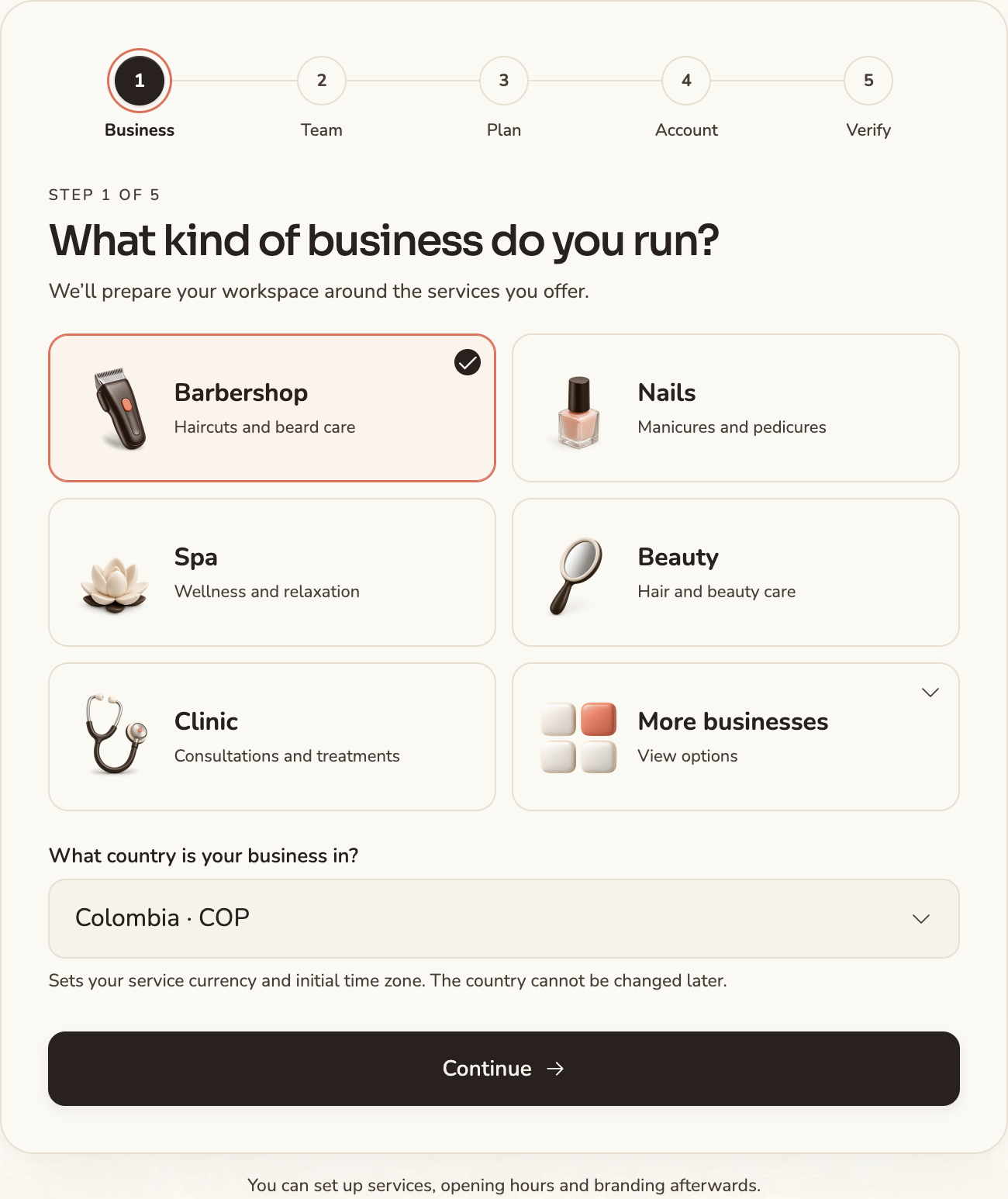
- Open the business-account signup from the sign-in screen or Acomply’s getting-started page (/empezar). Choose an available country, business activity and actual team size, including yourself. If a business has invited you, accept that invitation instead of creating another business. Your country determines service currency and the initial time zone; you cannot change the country later.
- Review the proposed plan and displayed terms. If Without Mía / With Mía appears, check the choice and its future price; selecting it is not a payment. Verify any optional code before relying on special pricing.
- Enter the business name, available booking address, city and your owner details, using a real email you can access and a valid password. Check the email before continuing: it is used for sign-in and recovery.
- Select Send code to email. Check your inbox and spam, enter the 6-digit code and use Verify and get started if the button is shown. If it does not arrive, use resend and the newest code; correct a mistyped email.
- Wait for the result and continue the displayed service, team and hours setup. If the account was created but automatic sign-in failed, sign in with that email and password. Do not repeat signup to fix a login error.
Feature availability depends on your plan and permissions.